Magento Plugin
Accept payments on your Magento 2 store with Omise. Complete support for credit cards, bank transfers, e-wallets, and installments with easy Composer installation.
Overview
Features:
- Magento 2.1.18 - 2.4.5 support
- Composer installation
- All Omise payment methods
- Multi-store configuration
- Admin order management
- Automatic refunds
- 3D Secure support
- Mobile-optimized checkout
Prerequisites
Requirements:
- Magento 2.1.18 - 2.4.5
- PHP 7.2 or higher (PHP 8.2+ compatibility added in v3.8.0)
- Composer installed
- Active Omise account
- SSH or terminal access
- Admin access to Magento
Installation
Via Composer (Recommended)
# Navigate to Magento root directory
cd /path/to/magento

# Require Omise module
composer require omise/omise-magento

# Enable module
php bin/magento module:enable Omise_Payment

# Run setup upgrade
php bin/magento setup:upgrade

# Compile code
php bin/magento setup:di:compile

# Deploy static content
php bin/magento setup:static-content:deploy

# Clear cache
php bin/magento cache:flush
Manual Installation
- Download latest release from GitHub
- Extract to
app/code/Omise/Payment - Run setup commands as above
Configuration
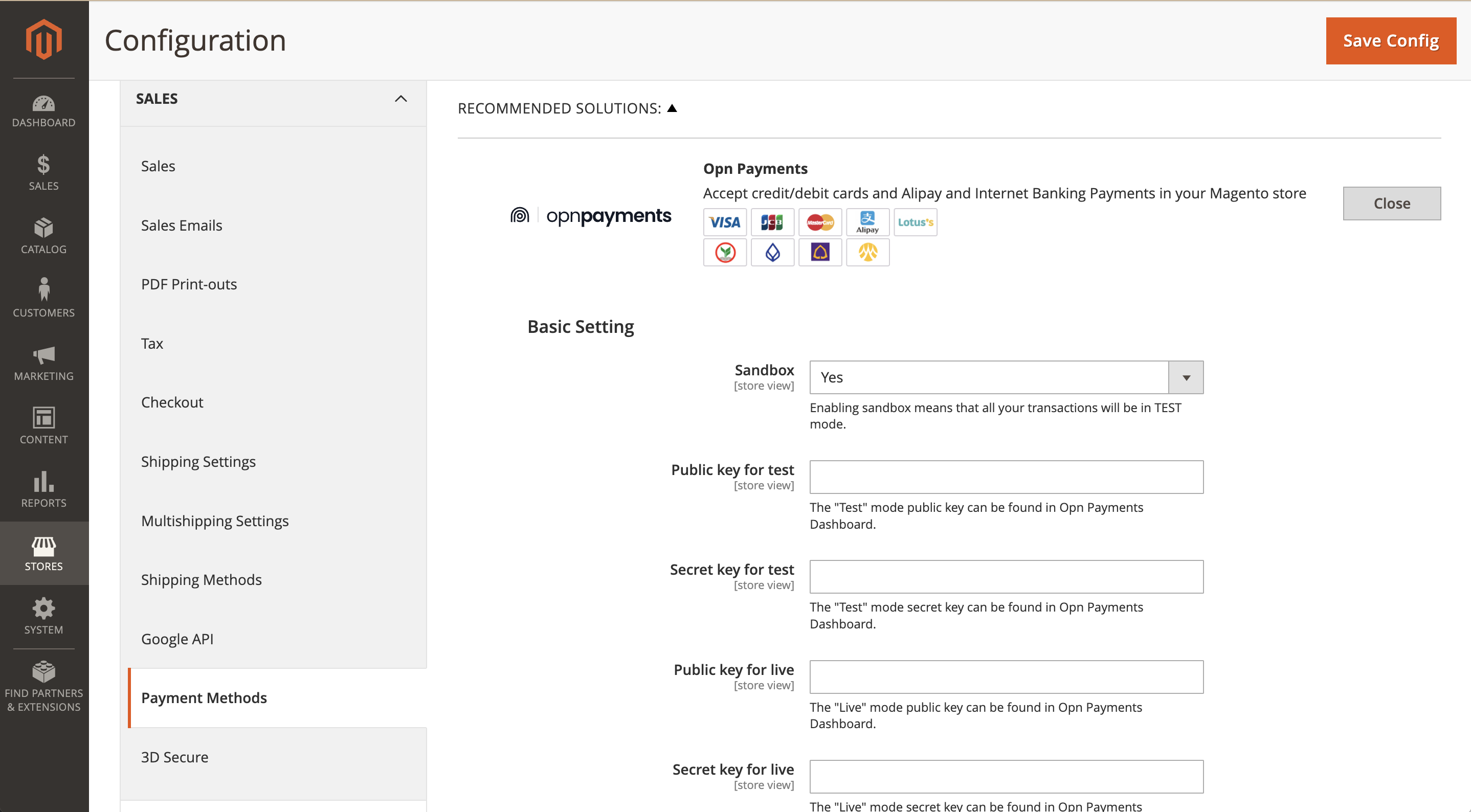
Step 1: Access Payment Settings
- Log in to Magento Admin
- Navigate to Stores → Configuration
- Under Sales, click Payment Methods
- Find Omise Payment Gateway section
Step 2: Configure API Keys
Basic Settings:
- Enabled: Yes
- Title: Omise Payment Gateway
- Environment: Sandbox (for testing)

API Configuration:
- Public Key (Test): pkey_test_xxxxx
- Secret Key (Test): skey_test_xxxxx
- Public Key (Live): pkey_live_xxxxx (add later)
- Secret Key (Live): skey_live_xxxxx (add later)
Get API Keys:
- Visit Omise Dashboard
- Go to Settings → Keys
- Copy test keys for initial setup
- Copy live keys when ready to launch
Step 3: Enable Payment Methods
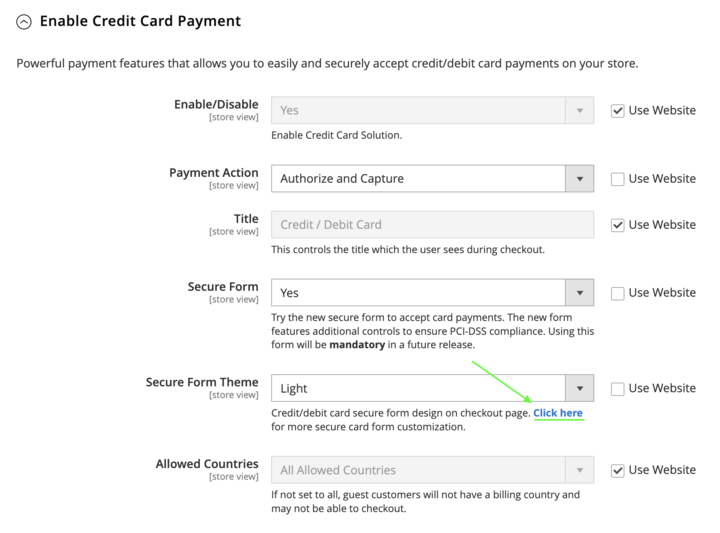
Credit/Debit Cards:
Enable: Yes
Title: Credit/Debit Card
3D Secure: Enabled
Payment Action: Authorize and Capture
Accepted Cards: Visa, Mastercard, Amex, JCB
Internet Banking:
Enable: Yes
Title: Internet Banking
Supported Banks: All Thai Banks
Instructions: "You will be redirected to your bank"
E-Wallets:
Enable TrueMoney Wallet: Yes
Enable Rabbit LINE Pay: Yes
Enable ShopeePay: Yes
Installments:
Enable: Yes
Minimum Order: 3000 THB
Available Terms: 3, 6, 10 months
Step 4: Configure Webhooks
Webhook URL Format:
https://yourstore.com/omise/webhook/callback
Setup in Omise Dashboard:
- Go to Settings → Webhooks
- Click Add Webhook
- Enter webhook URL
- Select events:
- charge.complete
- charge.failed
- refund.create
- Save webhook
Test Webhook:
# Test webhook endpoint
curl -X POST https://yourstore.com/omise/webhook/callback \
  -H "Content-Type: application/json" \
  -d '{"key":"charge.complete","data":{"id":"chrg_test_xxx"}}'
Step 5: Order Status Mapping
Configure how Omise payment statuses map to Magento order statuses:
Payment Status Mapping:
- Pending → Pending Payment
- Authorized → Processing
- Captured → Processing
- Successful → Complete
- Failed → Canceled
- Refunded → Closed
Custom Status Mapping:
// app/code/Omise/Payment/etc/config.xml
<default>
    <payment>
        <omise>
            <order_status>
                <pending>pending_payment</pending>
                <successful>processing</successful>
                <failed>canceled</failed>
            </order_status>
        </omise>
    </payment>
</default>
Testing
Test Mode Setup
Configuration:
✓ Set Environment to "Sandbox"
✓ Use test API keys
✓ Enable debug logging
✓ Test all payment methods
Test Cards
Successful Payment:
Card: 4242 4242 4242 4242
Expiry: 12/28
CVV: 123

Failed Payment:
Card: 4000 0000 0000 0002

3D Secure Enrollment Failure:
Card: 4111 1111 1115 0002 (Visa)

3D Secure Authentication Failure:
Card: 4111 1111 1114 0003 (Visa)
Test Order Flow
-
Create Test Order
- Add product to cart
- Proceed to checkout
- Fill shipping information
- Select Omise payment method
-
Complete Payment
- Enter test card details
- Complete 3D Secure if prompted
- Verify payment success
-
Verify in Admin
- Check order created
- Verify order status
- Check payment details
- Review transaction info
Multi-Store Configuration
Separate Configuration Per Store
Store 1 (Thailand):
- Currency: THB
- Payment Methods: All
- API Keys: Thailand account
- Language: English/Thai

Store 2 (Singapore):
- Currency: SGD
- Payment Methods: Cards, Wallets
- API Keys: Singapore account
- Language: English
Configure Per Store View:
- Select store view in scope selector
- Uncheck "Use Website" for settings you want to override
- Enter store-specific values
- Save configuration
Order Management
Viewing Payment Information
Order Details:
- Omise Charge ID
- Payment method used
- Transaction amount
- Transaction date
- Payment status
- Customer billing details
Access Payment Info:
Orders → Select Order → Payment Information section
Processing Refunds
Full Refund:
- Open order
- Click Credit Memo
- Select items to refund
- Click Refund Offline or Refund
- Omise processes refund automatically
Partial Refund:
- Open order
- Click Credit Memo
- Enter custom amounts
- Add refund reason
- Submit refund
Refund Limitations:
Cards: Refundable within 120 days
Internet Banking: Not refundable
E-Wallets: Varies by provider
Installments: Special process required
Advanced Features
Payment Capture
Automatic Capture (Default):
Payment Action: Authorize and Capture
- Charges immediately
- Funds held for settlement
- Standard flow
Manual Capture:
Payment Action: Authorize Only
- Authorizes payment
- Manual capture later
- For pre-orders
- 7-day authorization period
Manual Capture Process:
1. Order placed (authorized only)
2. Review order in admin
3. Click "Invoice"
4. Select "Capture Online"
5. Payment captured
Saved Cards
Enable Saved Cards:
Configuration:
Payment Methods → Omise → Credit Card
✓ Enable Saved Cards
✓ Customer Can Delete Cards
Customer Experience:
- Save card during checkout
- View saved cards in account
- Use saved card for future orders
- Delete cards anytime
Security:
- Cards tokenized by Omise
- No card data stored locally
- PCI compliant
- Secure token storage
Custom Checkout Fields
Add custom fields to payment section:
// app/code/Omise/Payment/view/frontend/layout/checkout_index_index.xml
<item name="custom-field" xsi:type="array">
    <item name="component" xsi:type="string">Magento_Ui/js/form/element/abstract</item>
    <item name="config" xsi:type="array">
        <item name="customScope" xsi:type="string">omisePayment</item>
        <item name="template" xsi:type="string">ui/form/field</item>
        <item name="elementTmpl" xsi:type="string">ui/form/element/input</item>
    </item>
    <item name="provider" xsi:type="string">checkoutProvider</item>
    <item name="dataScope" xsi:type="string">omisePayment.custom_field</item>
    <item name="label" xsi:type="string" translate="true">Custom Field</item>
    <item name="sortOrder" xsi:type="string">1</item>
</item>
Customization
Payment Method Display
Reorder Payment Methods:
Configuration → Payment Methods

Sort Order:
1. Credit Card (Sort Order: 1)
2. Internet Banking (Sort Order: 2)
3. TrueMoney Wallet (Sort Order: 3)
4. Rabbit LINE Pay (Sort Order: 4)
Custom Payment Titles:
Credit Card: "Pay with Credit/Debit Card"
Internet Banking: "ชำระผ่านธนาคาร (Bank Transfer)"
TrueMoney Wallet: "TrueMoney Wallet"
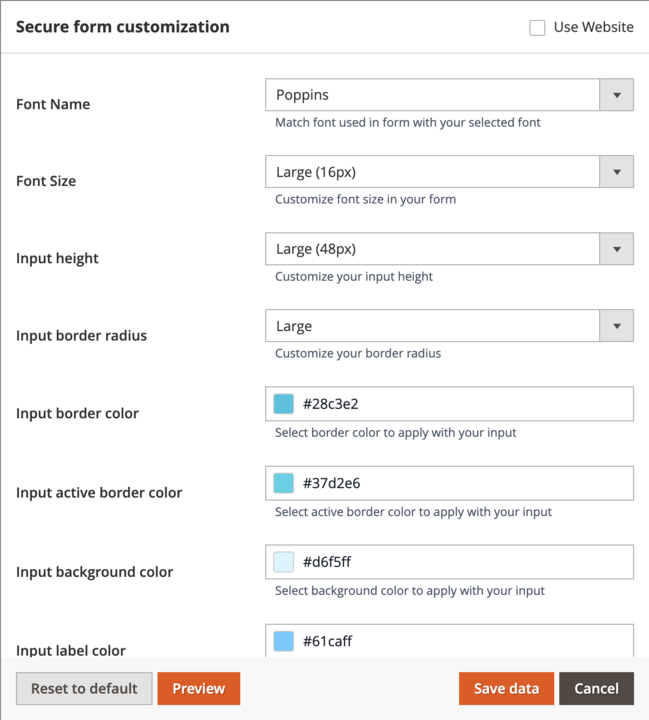
Payment Form Customization
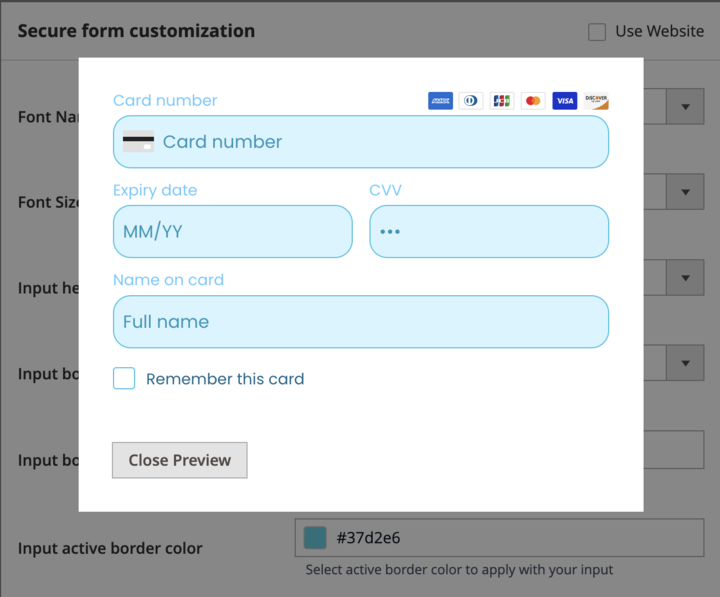
Customize the appearance of payment forms to match your store's branding.
Access Form Customization:
Customize Form Elements:
Preview Your Changes:
Custom CSS:
/* app/design/frontend/[Vendor]/[Theme]/web/css/source/_module.less */

.payment-method-omise {
    .payment-method-title {
        font-weight: bold;
        color: #FF5722;
    }

    .payment-method-content {
        padding: 15px;
        border: 2px solid #e0e0e0;
    }
}
Email Templates
Customize Payment Emails:
Marketing → Communications → Email Templates

Create New Template:
- Template: New Order
- Customize payment info section
- Add Omise branding
- Save template
Email Variables:
{{var payment_html}}
{{var order.getPayment().getMethodInstance().getTitle()}}
{{var order.getPayment().getAdditionalInformation('omise_charge_id')}}
Troubleshooting
Common Issues
Issue: Module not showing in payment methods
Solution:
1. Clear cache: php bin/magento cache:flush
2. Recompile: php bin/magento setup:di:compile
3. Check module enabled: php bin/magento module:status
4. Verify API keys entered
5. Check Magento logs: var/log/system.log
Issue: Webhook not updating order status
Solution:
1. Verify webhook URL accessible
2. Check webhook configured in Omise Dashboard
3. Review webhook logs in Magento
4. Test webhook manually
5. Check server firewall settings
Issue: Payment failing at checkout
Solution:
1. Check API keys correct
2. Verify payment method enabled in Omise account
3. Check currency supported
4. Review Magento error logs
5. Test in sandbox mode
Issue: Refund not processing
Solution:
1. Verify payment method supports refunds
2. Check refund within allowed timeframe
3. Ensure sufficient settlement balance
4. Review Omise Dashboard for errors
5. Try smaller refund amount
Debug Mode
Enable Debugging:
Stores → Configuration → Advanced → Developer
Developer Client Restrictions: No
Logging: Enabled

Omise Payment → Advanced Settings
✓ Debug Mode Enabled
✓ Log API Requests
✓ Log Webhook Events
View Logs:
# Magento logs
tail -f var/log/system.log
tail -f var/log/exception.log

# Omise specific logs
tail -f var/log/omise.log
Performance Optimization
Checkout Speed
Optimize Payment Loading:
✓ Enable Magento full page cache
✓ Use CDN for payment icons
✓ Minimize checkout steps
✓ Optimize JavaScript bundling
✓ Enable HTTP/2
Reduce Redirects:
✓ Use inline card forms
✓ Minimize external redirects
✓ Optimize webhook response time
✓ Cache payment method configurations
Database Optimization
Index Payment Tables:
-- Add index to improve payment queries
ALTER TABLE sales_order_payment ADD INDEX idx_omise_charge_id (last_trans_id);
Clean Old Logs:
# Remove old logs
php bin/magento log:clean --days=30
Security Best Practices
API Key Security
✓ Store keys in env.php (not database)
✓ Use different keys for test/live
✓ Rotate keys regularly
✓ Limit admin user access
✓ Monitor API key usage
Store Keys in env.php:
// app/etc/env.php
return [
    'payment' => [
        'omise' => [
            'live_public_key' => getenv('OMISE_LIVE_PUBLIC_KEY'),
            'live_secret_key' => getenv('OMISE_LIVE_SECRET_KEY'),
        ]
    ]
];
Checkout Security
✓ Force HTTPS on checkout
✓ Enable 3D Secure
✓ Implement CAPTCHA
✓ Use Magento security scan
✓ Keep Magento updated
✓ Monitor for fraud
PCI Compliance
✓ Never store card data
✓ Use Omise.js for card collection
✓ Maintain PCI SAQ-A compliance
✓ Regular security audits
✓ Keep SSL certificate valid
✓ Follow PCI DSS guidelines
FAQ
Which Magento versions are supported?
Magento 2.3.x and 2.4.x are fully supported. Magento 1.x requires a different plugin.
Can I use it with Magento Cloud?
Yes, the plugin works with Magento Cloud. Follow standard Composer installation.
Does it work with multiple store views?
Yes, you can configure different settings per store view including API keys, payment methods, and currencies.
Can I capture payments manually?
Yes, set Payment Action to "Authorize Only" and capture manually from order invoices.
Are there any transaction limits?
Omise API limits apply. Contact support for higher limits. No plugin-specific limits.
Can customers save multiple cards?
Yes, when saved cards feature is enabled, customers can save multiple cards securely.
How do I switch from test to live mode?
Change Environment to "Live" and add live API keys in configuration. Test thoroughly in sandbox first.
Does it work with B2B features?
Yes, the plugin works with Magento B2B features including company accounts and negotiable quotes.
Can I customize the payment form?
Yes, through theme customization and layout XML. Some customizations may require PHP/JavaScript knowledge.
What happens during Magento upgrades?
The plugin is generally compatible with Magento updates. Always test in staging environment first.
Is there support for subscriptions?
Not built-in. For recurring payments, consider integrating Omise subscription API separately.
Can I accept payments in multiple currencies?
Yes, configure different currencies per store view. Omise supports multiple currencies.
Next Steps
- PrestaShop Plugin - PrestaShop integration guide
- Dashboard Guide - Manage payments in dashboard
- API Documentation - Advanced integration options
- Testing Guide - Testing best practices
Additional Resources
Need help? Contact our support team at support@omise.co or visit the Help Center.