OpenCart Plugin
Accept payments on your OpenCart store with Omise. Complete payment solution for OpenCart 3.x with support for all Omise payment methods.
Overview
- OpenCart 2.0.3.1 support
- Simple file upload installation
- All payment methods
- Multi-store support
- Automatic order updates
- Mobile-friendly checkout
Installation
Manual Installation
-
Download Plugin
- Visit GitHub releases
- Download latest version ZIP file
-
Upload Files
- Extract ZIP file
- Upload
upload/folder contents to OpenCart root - Merge with existing directories
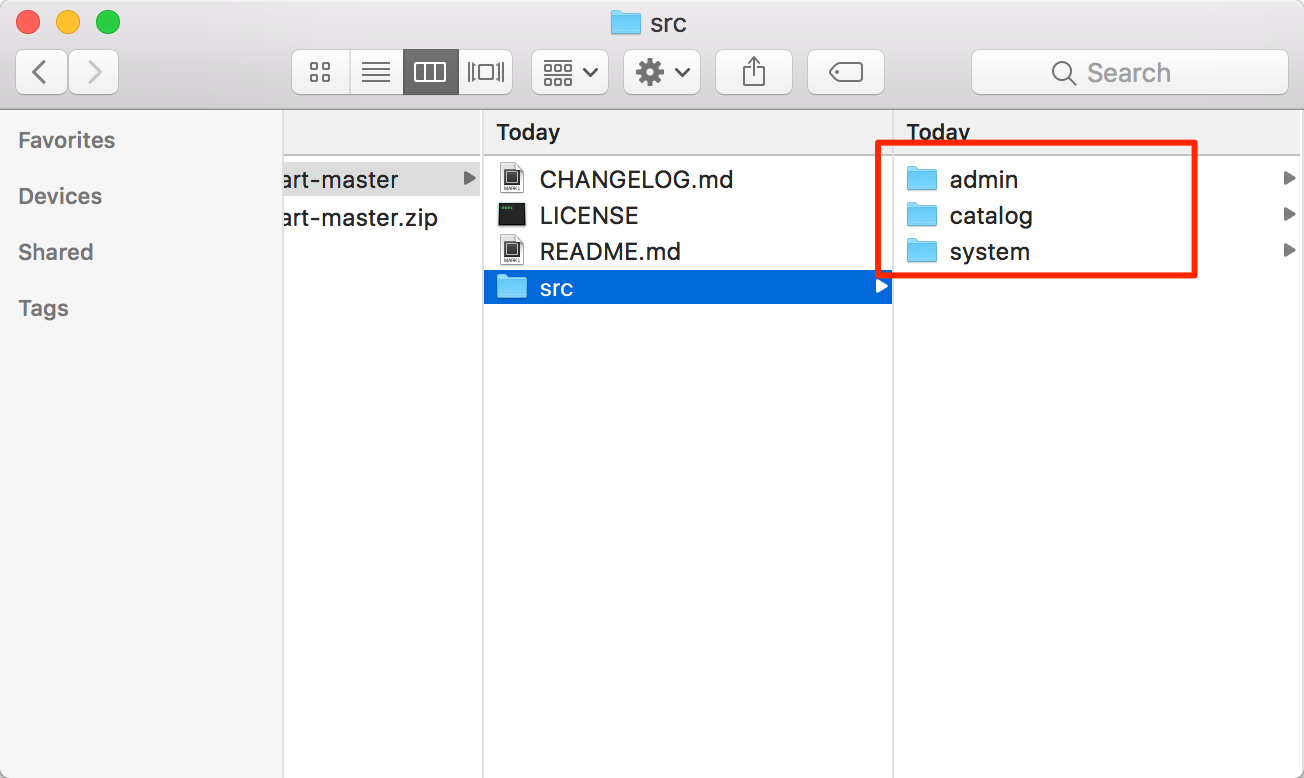
- Install Extension
- Log in to OpenCart admin
- Navigate to Extensions → Extensions
- Select extension type: Payments
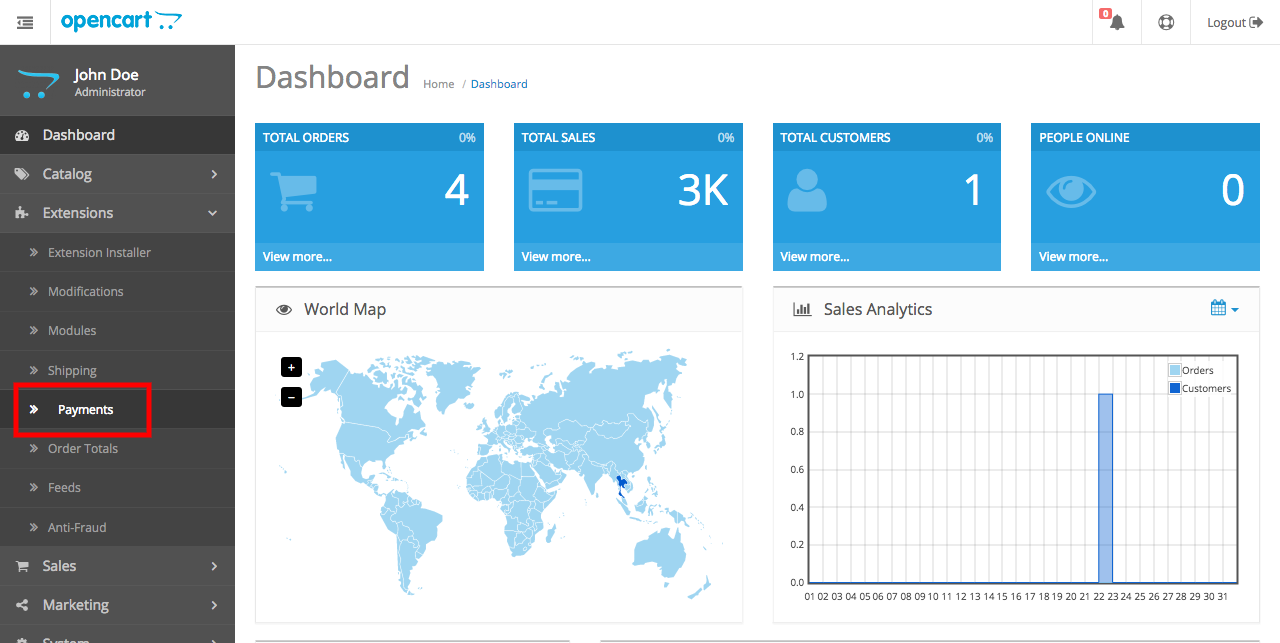
- Find "Omise Payment Gateway"
- Click Install button (green plus button)
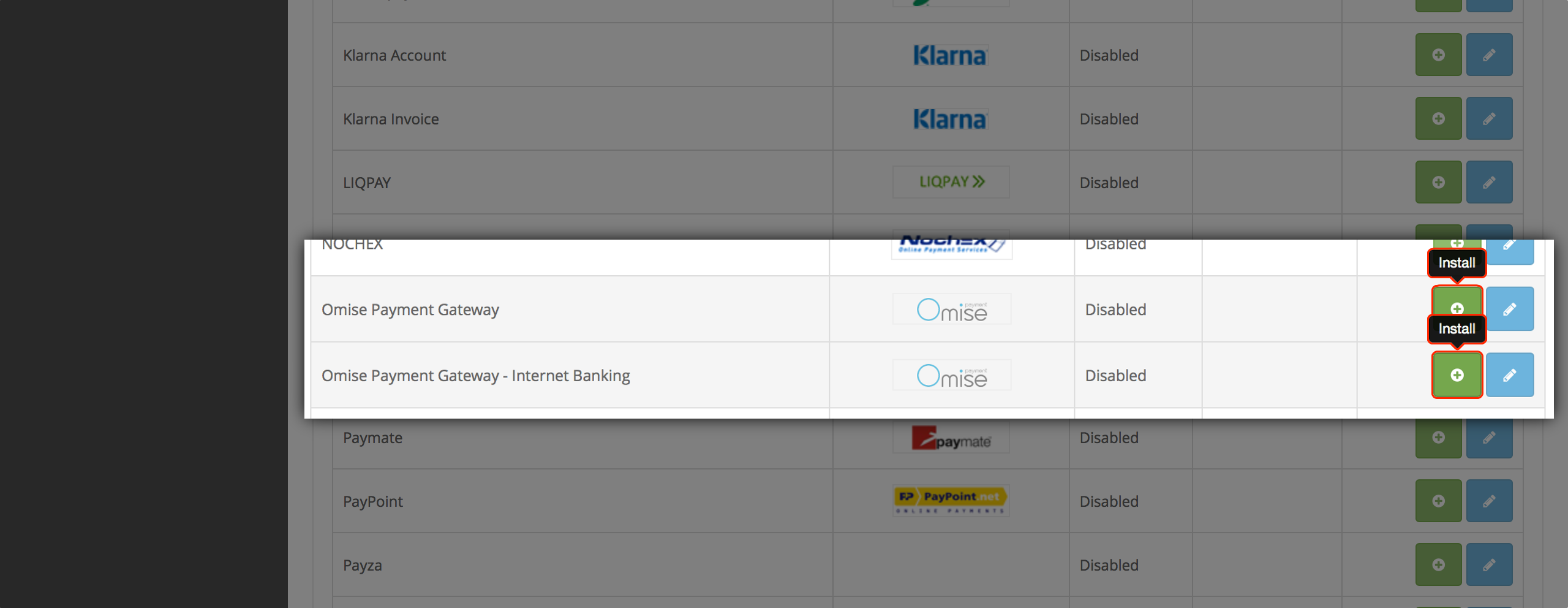
Configuration
Basic Setup
Extensions → Extensions → Payments → Omise Payment Gateway → Edit

General Settings:
- Status: Enabled
- Test Mode: Yes (for testing)

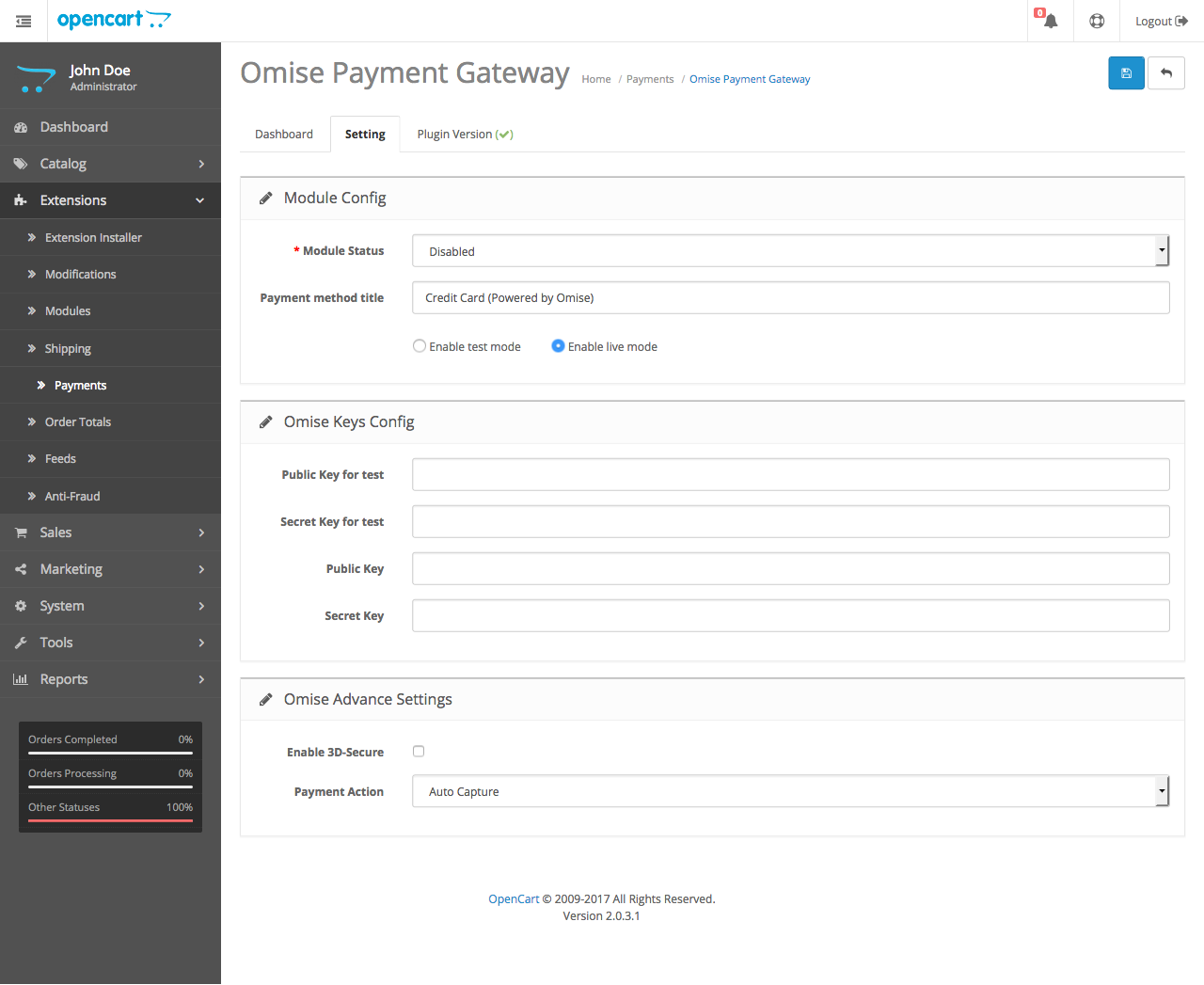
API Keys:
- Public Key (Test): pkey_test_xxxxx
- Secret Key (Test): skey_test_xxxxx
After installation, click the blue pencil button to configure:
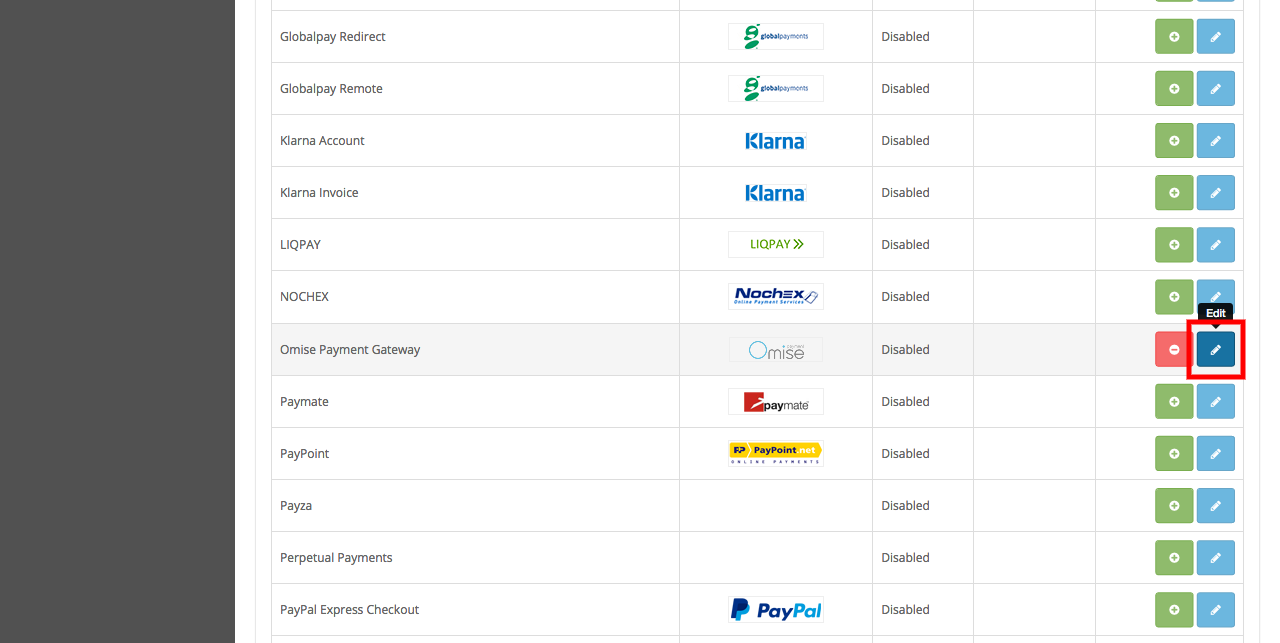
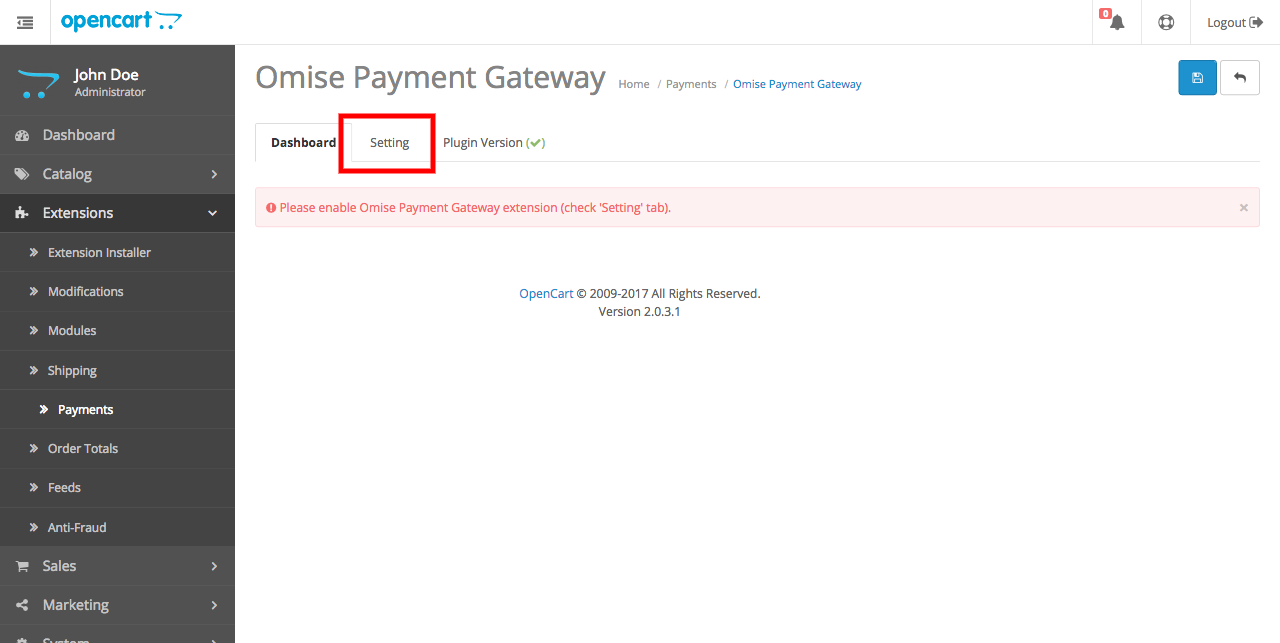
Enable the gateway in the settings page:
Enter your API keys in the configuration form:
Payment Methods
Enable Methods:
Credit/Debit Cards:
✓ Enabled
✓ 3D Secure: Yes

Internet Banking:
✓ Enabled

E-Wallets:
✓ TrueMoney Wallet
✓ Rabbit LINE Pay
✓ ShopeePay

Installments:
✓ Enabled
✓ Minimum: THB 3,000
Webhook Setup
Webhook URL Format:
https://yourstore.com/index.php?route=extension/payment/omise/callback

Add to Omise Dashboard:
Settings → Webhooks → Add webhook
- URL: (webhook URL above)
- Events: charge.complete, charge.failed, refund.create
Testing
Test Environment
Configuration:
✓ Test Mode: Enabled
✓ Test API keys entered
✓ Clear modification cache

Test Order:
1. Add product to cart
2. Checkout as guest or registered
3. Select Omise payment
4. Use test card: 4242 4242 4242 4242
5. Complete payment
6. Verify order status updated
Order Management
View Payment Information
Sales → Orders → View Order

Payment Information shows:
- Payment method used
- Omise charge ID
- Transaction amount
- Payment status
- Transaction date
Process Refunds
Manual Refund via Omise Dashboard:
- Log in to Omise Dashboard
- Find charge
- Click "Refund"
- Enter amount
- Confirm refund
- Update order in OpenCart manually
Note: OpenCart refunds don't automatically sync to Omise. Process refunds through Omise Dashboard.
Multi-Store Configuration
For multiple stores:

Store 1:
- System → Settings → Edit Store 1
- Use different API keys per store
- Configure payment methods per store

Store 2:
- Repeat configuration
- Independent settings
Customization
Payment Method Order
Extensions → Payments

Sort Order field:
- Omise: 1 (appears first)
- Other methods: 2, 3, etc.
Custom Templates
catalog/view/theme/[your-theme]/template/extension/payment/omise.twig

Customize:
- Payment method display
- Form styling
- Button text
- Instructions
Language Strings
catalog/language/[language]/extension/payment/omise.php

$_['text_title'] = 'ชำระเงินผ่าน Omise';
$_['text_card'] = 'บัตรเครดิต/เดบิต';
$_['text_internet_banking'] = 'อินเทอร์เน็ตแบงก์กิ้ง';
Troubleshooting
Common Issues
Extension not visible in payment methods:
Solution:
1. Clear OpenCart cache
2. Clear browser cache
3. Check extension installed correctly
4. Verify files uploaded properly
5. Check file permissions
Orders not updating:
Solution:
1. Verify webhook URL
2. Test webhook from Omise Dashboard
3. Check OpenCart error logs
4. Verify PHP version compatibility
5. Check mod_security not blocking
Payment redirects failing:
Solution:
1. Check SSL certificate valid
2. Verify return URLs configured
3. Test different payment method
4. Review OpenCart system logs
5. Check for conflicting extensions
Debug Mode
Enable OpenCart Debugging:
System → Settings → Edit store → Server tab
✓ Display Errors
✓ Log Errors

Check logs:
system/storage/logs/error.log
Security
Best Practices
✓ Use HTTPS only
✓ Keep OpenCart updated
✓ Use strong admin passwords
✓ Enable 3D Secure
✓ Regular backups
✓ Monitor suspicious orders
✓ Rotate API keys periodically
File Permissions
Secure file permissions:
Files: 644
Directories: 755
config.php: 444
admin/config.php: 444
Performance
Optimize Checkout
✓ Enable OpenCart caching
✓ Minimize checkout steps
✓ Optimize images
✓ Use CDN
✓ Enable GZIP compression
FAQ
Which OpenCart versions are supported?
OpenCart 3.0.x is fully supported. For OpenCart 2.x, use the legacy version.
Can I test before going live?
Yes, enable test mode and use test API keys for safe testing.
How do I switch to live mode?
Disable test mode and enter live API keys in configuration.
Are refunds automatic?
No, process refunds through Omise Dashboard and update OpenCart order manually.
Can I use it with other payment methods?
Yes, enable multiple payment methods. Customers choose at checkout.
Does it work with OpenCart extensions?
Generally yes, but test with your specific extensions for compatibility.
How do I update the plugin?
Download latest version, backup store, upload new files, clear cache.
Can customers save cards?
Card saving feature availability depends on plugin version. Check latest release notes.
Is multi-currency supported?
Yes, configure currencies in OpenCart. Ensure currencies supported by Omise.
What if I encounter errors?
Check error logs, verify configuration, test in sandbox, contact support if needed.
Next Steps
- EC-CUBE Plugin - EC-CUBE integration
- Dashboard Guide - Manage payments
- Payment Methods - Payment options
Resources
Need help? Contact support@omise.co